On this page
- 1. What Does “Deceptive Pages” Mean?
- 2. How Does It Impact Google SEO?
- Common Misconception: Security Issues vs. Manual Actions
- 3. Why Do Legitimate Websites Get Flagged?
- 1. Injected Rogue Ads or Third-Party Widgets
- 2. Undetected Web Infiltrations (Web Shells & Hidden Directories)
- 3. Identity Ambiguity in Third-Party Services
- 4. Are Empty “Sample URLs” a False Positive?
- 5. Four Steps to Thorough Triage and Remediation
- Step 1: Audit Security Reports and User Permissions
- Step 2: Multi-Context Simulation and Behavioral Triage
- Step 3: Site-Wide Root-Cause Eradication
- Step 4: Cache Invalidation and Review Submission
- 6. How to Write a Successful Security Review Request
- Sample Request Review Letter (Third-Party Script / Ad Network Issue)
- Additional Submission Tips:
- 7. How Long Does It Take to Remove Warnings and Recover SEO?
- 8. Frequently Asked Questions (FAQ)
- Q1: My website uses HTTPS—why was it flagged as deceptive?
- Q2: Is deleting the pages listed under Sample URLs sufficient?
- Q3: A third-party security scanner reported 100% clean—can I appeal now?
- Conclusion
- References & Official Guidelines
Opening Google Search Console (GSC) and encountering a red “Deceptive pages” security alert often triggers immediate panic. Many webmasters rush to tweak meta titles, adjust keyword density, resubmit sitemaps, or blindly hit “Request review.”
When this warning strikes, your immediate priority is to verify whether your site is tricking users into downloading unwanted software or coercing them into revealing sensitive personal credentials[1]. Even if your website appears completely clean when viewed in your local browser, do not assume Google made a false positive—malicious code frequently targets specific devices or hides behind rotating third-party ad networks.
This guide explores the mechanisms behind Google’s deceptive page flags, examines their real-world impact on organic SEO traffic, and outlines an end-to-end framework for triage, remediation, and successful review submission.
1. What Does “Deceptive Pages” Mean?
Google’s official documentation defines the issue as follows:
“These pages attempt to trick users into doing something dangerous, such as installing unwanted software or revealing personal information.” [1]
In cybersecurity, deceptive content falls under social engineering attacks[2]. Attackers manipulate human trust through deceptive interface design or impersonation:
- Impersonating Trusted Entities: Displaying counterfeit login dialogs mimicking Google, Apple, or Microsoft to harvest credentials.
- Fabricating System Warnings: Presenting fake browser banners such as “Your browser is out of date” or “Virus detected — call support.”
- Disguised Functional Buttons: Designing third-party ads to mimic the site’s own primary “Play,” “Download,” or “Continue” action buttons.
           [ Standard Website Pages ]
                       │
       ┌───────────────┴───────────────┐
       ▼                               ▼
[ Legitimate Forms / Downloads ]  [ Social Engineering Traps ]
• Transparent intent & labels     • Fabricated OS / browser popups
• Consistent branding & domain    • Ads disguised as native buttons
• No deceptive coercion           • Phishing credentials / malware
↳ [ Clean / Indexed ] ↳ [ "Deceptive pages" Flag ]2. How Does It Impact Google SEO?
The most immediate consequence is severe, site-wide traffic drop-off.
Once flagged for Deceptive Pages, Google activates multi-layered defenses:
- Search Snippet Warnings: Google Search may append security warning labels beneath your search results.
- Browser-Level Interstitial Blocks: Browsers backed by Google Safe Browsing (including Chrome, Firefox, and Safari) will display an alarming full-screen red warning page (“Deceptive site ahead”) whenever a visitor clicks your link[1].
User Search ──> Sees SERP Warning (CTR drops) ──> Clicks Result ──> Full-Screen Red Warning (User abandons)The business repercussions are immediate and catastrophic: virtually all prospective visitors turn away upon encountering the red interstitial screen, collapsing inbound inquiries, registrations, and transactions.
Common Misconception: Security Issues vs. Manual Actions
Webmasters often conflate Security Issues with standard SEO Manual Actions:
- Manual Actions: Penalize algorithmic manipulation (e.g., spam link schemes, keyword stuffing, scraped content).
- Security Issues: Address tangible hazards to user privacy, identity, and computing safety[1].
Consequently, do not assume your domain has suffered a permanent algorithmic rank demotion. The correct protocol is to first eliminate all security risks; once the warning is cleared, monitor organic search rankings as trust gradually recovers.
3. Why Do Legitimate Websites Get Flagged?
Merchants and site owners frequently ask: “Our business is 100% legitimate and we never built phishing pages—why were we flagged?”
In practice, the vast majority of clean websites trigger deceptive content warnings due to one of three external vectors:
1. Injected Rogue Ads or Third-Party Widgets
Google explicitly clarifies that deceptive advertisements, aggressive pop-unders, or unauthorized redirects served by third-party ad networks will cause the host page itself to violate policy[2].
- For example: An editorial blog post contains valuable, clean content, but a third-party ad exchange serves a rotating banner stating “System Alert: Your Flash Player has expired. Update now.”
- The fault originates with the ad provider, but Google views your domain as the distributor exposing visitors to danger.
2. Undetected Web Infiltrations (Web Shells & Hidden Directories)
Compromised admin credentials, unpatched CMS plugins (such as vulnerable WordPress extensions), or loose server file permissions frequently allow attackers to upload backdoors or insert conditional redirect scripts.
Attackers often implement cloaking: they serve malicious pages exclusively to mobile visitors originating from Google Search (Referer: google.com), while displaying clean pages to administrators browsing on desktop[2].
3. Identity Ambiguity in Third-Party Services
Websites providing white-label billing, checkout, or fulfillment portals for external brands sometimes fail to clearly establish operating identity. Google requires third-party service providers to visibly state their brand entity and clarify their operational relationship with the parent brand to prevent visitor confusion[2].
4. Are Empty “Sample URLs” a False Positive?
Definitely not.
Google Search Console reports frequently list the Deceptive Pages warning with no sample URLs provided. Google’s documentation explicitly clarifies: Security issue reports do not always include example URLs, but this does not mean the website is unaffected[1].
- When Sample URLs are provided: Use them as initial investigative breadcrumbs, but never restrict your cleanup to those URLs. Check whether other pages share the same headers, layout templates, ad tags, or scripts.
- When Sample URLs are empty: Conduct a global audit focusing on site-wide includes, recently updated dependencies, and sensitive authentication or download endpoints.
5. Four Steps to Thorough Triage and Remediation
Resolving Deceptive Pages requires a disciplined engineering triage workflow:
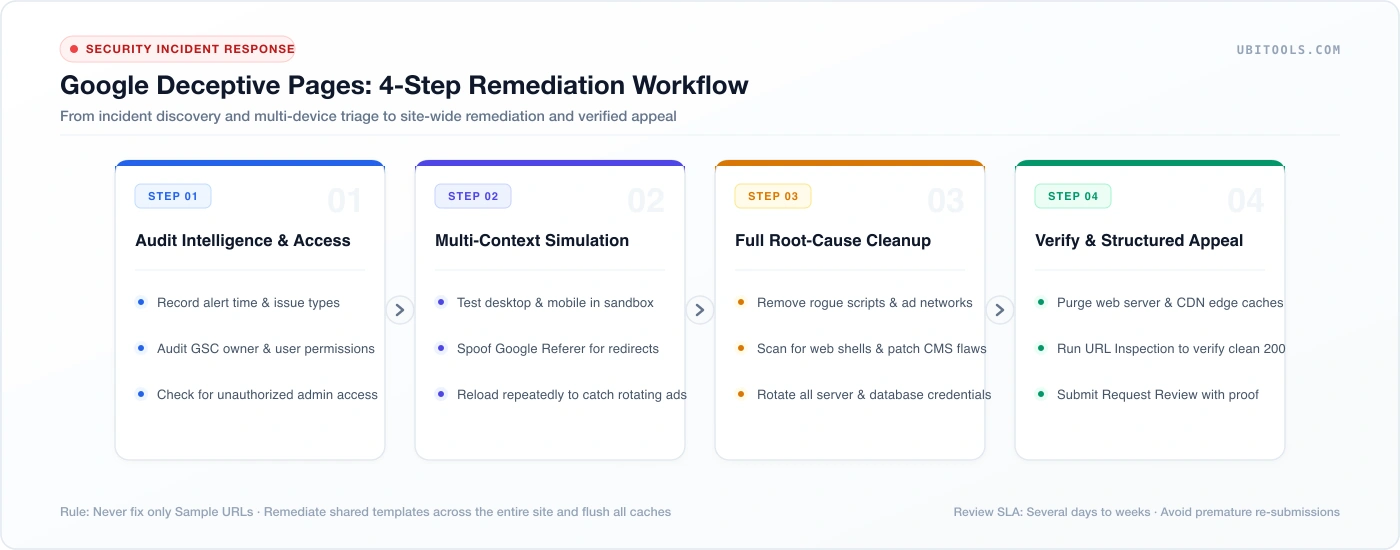
Figure 1. The 4-step remediation workflow: audit intelligence & user access, simulate external client environments, eliminate root causes across all templates, and submit a verified appeal.
Step 1: Audit Security Reports and User Permissions
- In Google Search Console, navigate to Security Issues, noting the initial detection date, violation classifications, and any sample URLs. If multiple security issues are listed, resolve them concurrently[1].
- Review Users and Permissions within GSC and your server CMS. Look for unfamiliar owner emails or unauthorized administrative accounts. If found, your database or DNS has likely been compromised; revoke access immediately[2].
Step 2: Multi-Context Simulation and Behavioral Triage
- Cross-Device Emulation: Use Chrome DevTools Device Mode to emulate iPhone, Android, and desktop user agents, checking for divergent rendering.
- Referer Spoofing: Inspect page behavior when simulating a Google Search referrer (
Referer: https://www.google.com/) to detect conditional redirects. - Ad Rotation Auditing: Because ad networks rotate creatives, refresh pages repeatedly across sessions to spot deceptive system warnings or fake download buttons.
- External Network Testing: Access pages from residential cellular networks or clean proxies outside corporate IP blocks to bypass cloaking filters[2].
Step 3: Site-Wide Root-Cause Eradication
- Third-Party Ad and Script Remediation: If an ad network served deceptive creatives, disable the network snippet immediately or request creative exclusion. Update shared template files rather than patching individual pages[2].
- Backdoor Eradication and Vulnerability Patching:
- Audit web directories for newly modified PHP, JS, or binary files, cron jobs, and
.htaccess/ Nginx rewrite directives. - Update your CMS core, themes, and all third-party plugins to their latest secure releases.
- Rotate database passwords, SSH keys, FTP credentials, and CMS administrator passwords to block reinfection.
- Audit web directories for newly modified PHP, JS, or binary files, cron jobs, and
- Clarify Third-Party Brand Affiliation: For white-label checkout or agency services, prominently display disclosures detailing operator identity and client partnerships[2].
Step 4: Cache Invalidation and Review Submission
- Purge Caches: After sanitizing code, flush all reverse proxy layers, CDN edge caches, and static bundle caches so Googlebot and real visitors fetch fresh, clean assets.
- Validate Accessibility: Use GSC’s URL Inspection tool (Live Test) to verify that Googlebot receives a clean HTTP 200 response without firewall interference[3].
- Submit Appeal: Click “Request review” within the GSC Security Issues report.
6. How to Write a Successful Security Review Request
A single-sentence appeal (“We fixed everything, please remove the warning”) is routinely rejected or delayed.
A persuasive review submission demonstrates three elements: root-cause identification, concrete remediation actions, and verification methodology[1].
Sample Request Review Letter (Third-Party Script / Ad Network Issue)
We identified a third-party advertising script that was displaying deceptive update prompts to visitors on our website.

Actions taken:
1. We have permanently removed the offending script from all site templates and shared modules.
2. We conducted a comprehensive code audit across the entire website to ensure no other references exist.
3. We tested the affected URLs across multiple devices (desktop, iOS, and Android) using external networks, confirming that all deceptive prompts, misleading banners, and redirects have ceased completely.

All pages are now serving clean, direct content. Please review our website and lift the security warning. Thank you.
Additional Submission Tips:
- For Hacked Sites: Explicitly list identified malicious files, patched vulnerabilities (e.g., outdated plugin X updated to version Y), rotated credentials, and reviewed server access logs.
- For Contested False Positives: Clearly explain the page’s legitimate business function, outline testing performed across clean external networks, and provide objective documentation. Do not invent non-existent fixes[1][2].
- Alternative False Positive Channel: If your site has no deceptive content and you suspect a Safe Browsing misclassification, submit an explanation via the Google Safe Browsing Report Error Page[2].
7. How Long Does It Take to Remove Warnings and Recover SEO?
Establish realistic operational expectations: Disregard claims of 24-hour clearance or instant ranking restoration.
- Review Processing Time: Google’s documentation indicates security review evaluations typically require several days to a few weeks[1][2]. Monitor Search Console alerts and linked email channels.
- Do Not Re-Submit Repeatedly: Never submit duplicate review requests while an existing request is pending. Premature, repetitive submissions are flagged as spam and delay processing queues[1].
- Post-Clearance Search Recovery: Having the red interstitial warning removed does not immediately return organic search traffic to peak levels. Restoring click-through rates and crawl frequency takes time; continue tracking impressions and clicks in Performance reports.
8. Frequently Asked Questions (FAQ)
Q1: My website uses HTTPS—why was it flagged as deceptive?
HTTPS encrypts data in transit; it does not validate content integrity. Phishing and deceptive websites routinely deploy SSL certificates. If a page displays counterfeit interfaces, deceptive ads, or malicious redirects, TLS encryption offers no exemption[2].
Q2: Is deleting the pages listed under Sample URLs sufficient?
No. Sample URLs represent illustrative examples, not an exhaustive inventory. If root causes (such as shared malicious ad scripts or persistent web shells) remain unaddressed, deleting individual URLs will result in appeal rejection[1].
Q3: A third-party security scanner reported 100% clean—can I appeal now?
Do not rely solely on automated scans. Generic online scanners often miss device-specific cloaking and dynamic ad rotations. Manual validation using external networks and GSC’s official report must remain your ultimate benchmark[1][2].
Conclusion
Resolving a Google “Deceptive pages” warning requires discipline: resist superficial patches and hasty appeals.
By focusing on root-cause identification, site-wide code eradication, thorough multi-device testing, and structured review submissions, webmasters can dismantle security warnings and rebuild organic search visibility on solid ground.
References & Official Guidelines
- [1] Google Search Console Help: Security Issues Report
- [2] Google Search Central: Social Engineering (Phishing and Deceptive Sites)
- [3] web.dev: Request a Review